 Knowmino
 guide
How to turn notes into tasks and calendar events
A workshop belongs on your calendar. Packing the clippers belongs on your to-do list. You can write both in one Knowmino note and let the AI assistant sort them.

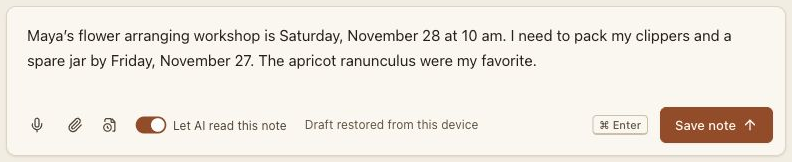
Maya’s flower arranging workshop is Saturday, November 28 at 10 am. I need to pack my clippers and a spare jar by Friday, November 27. The apricot ranunculus were my favorite.
Save the note
Sign in to a workspace with the AI plan and open Today. Type the note in the capture box. Give the workshop a start time and the packing task a deadline so the assistant can tell when each matters.
Switch on Let AI read this note, then select Save note. The note is saved first. The assistant works on it in the background.
Check what the assistant created
Open Notes, choose the saved note, and find the Linked panel. Compare its two rows with the original wording. In this example, the date attached to “by Friday” belongs to the packing task.
- Calendar event
- Flower arranging workshopSaturday, November 28 at 10 am. This is when you need to be there.
- To-do
- Pack clippers and a spare jarDue Friday, November 27. You can pack any time before the deadline.
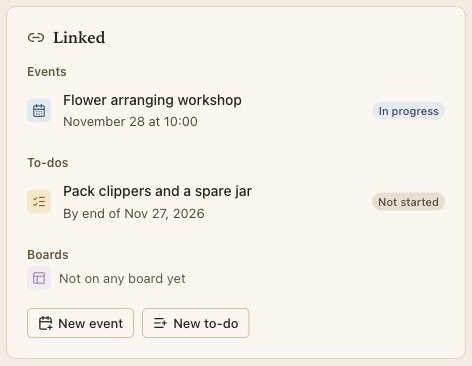
The sentence about the apricot ranunculus stays in the note. If the assistant asks for more information, use Add details to finish scheduling on the note card. If an item is still missing, New event and New to-do in the Linked panel let you add it yourself.
Find or change a plan later
On Friday, open To-dos and select Pack clippers and a spare jar. Choose Edit to change its deadline, or Mark as done once the supplies are packed. To see what Maya originally asked you to bring, select View original note in the task’s Overview panel.

For the workshop, open Schedule or select the workshop in the note’s Linked panel. If Maya moves the workshop, open the event and choose Edit event to update the start time.
Screenshots show the Knowmino interface with sample records.